My PDF Scanner
A professional document scanner in your pocket

Scan, organize,and export clean PDFs.All in one flow.

My PDF Scanner brings capture, import, crop, filters, OCR, signatures, folders, batch actions, and password protection into one mobile workflow.
Scan paperAutomatic edge detection
Import filesPDFs and images in one place
Organize docsFolders, search, sorting
Protect accessPassword and App PIN
My PDF Scanner home screen

A shorter path from paper to file library

Users do not need to learn a pile of tools first. They simply follow the next step in the scanning workflow.

01

Capture or import

Camera scanning, multi-page capture, photo imports, and iCloud files enter the same workflow.

02

Clean pages

Crop edges, fix perspective, apply filters, and reduce noise so paper becomes archive-ready.

03

Organize files

Use folders, search, sorting, and batch actions to keep contracts, IDs, notes, and receipts in order.

04

Export and share

Export PDF, JPG, TXT, or Word files, then merge, share, or move multiple scans when needed.

Make a scanner app finish the document job

PDF Scanner does more than take a photo. It turns paper into documents you can edit, organize, and share.

Capture and import

Camera, multi-page scanning, photos, and iCloud files all start from one document entry.
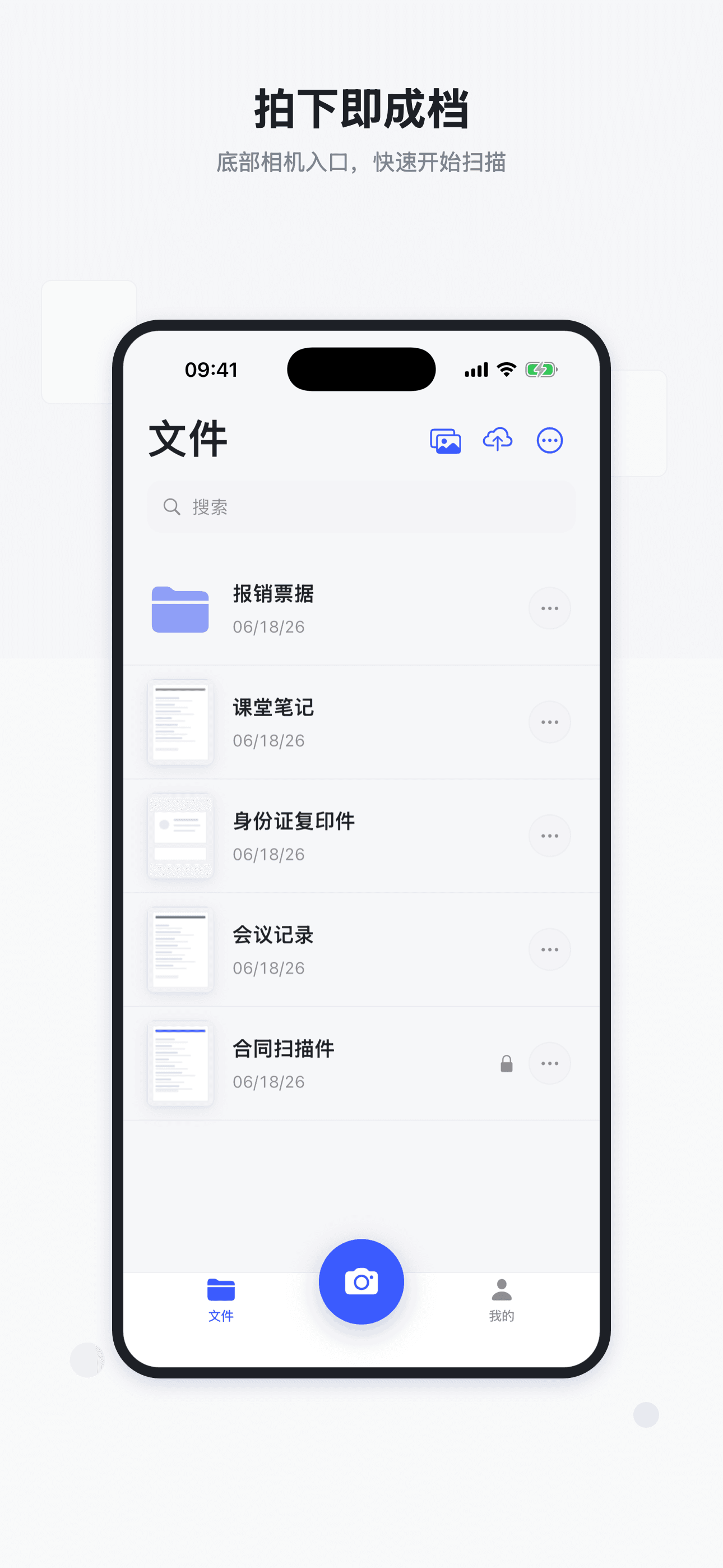
Automatic edge detection
Auto capture when stable
PDF / JPG / PNG / HEIC imports
Capture and import screen

Clean up pages

From borders and perspective to filters, turn paper into pages ready to keep.
Auto crop and manual borders
Print-ready, black-and-white, and brighten filters
Sign, rotate, and reorder pages
Clean up pages screen

Organize and protect

Scans do not disappear into the camera roll. They stay in a document library built for follow-up work.

Folders, search, and sorting
Batch merge, move, export, and share
In-app password and App PIN
Organize and protect screen

Real product screens, not marketing artwork

The screens show the scanning, importing, managing, and protection flows users actually see in the app.

Protect important files

Add in-app access protection when needed

Batch actions

Move, export, merge, or delete selected files

Scan to PDF

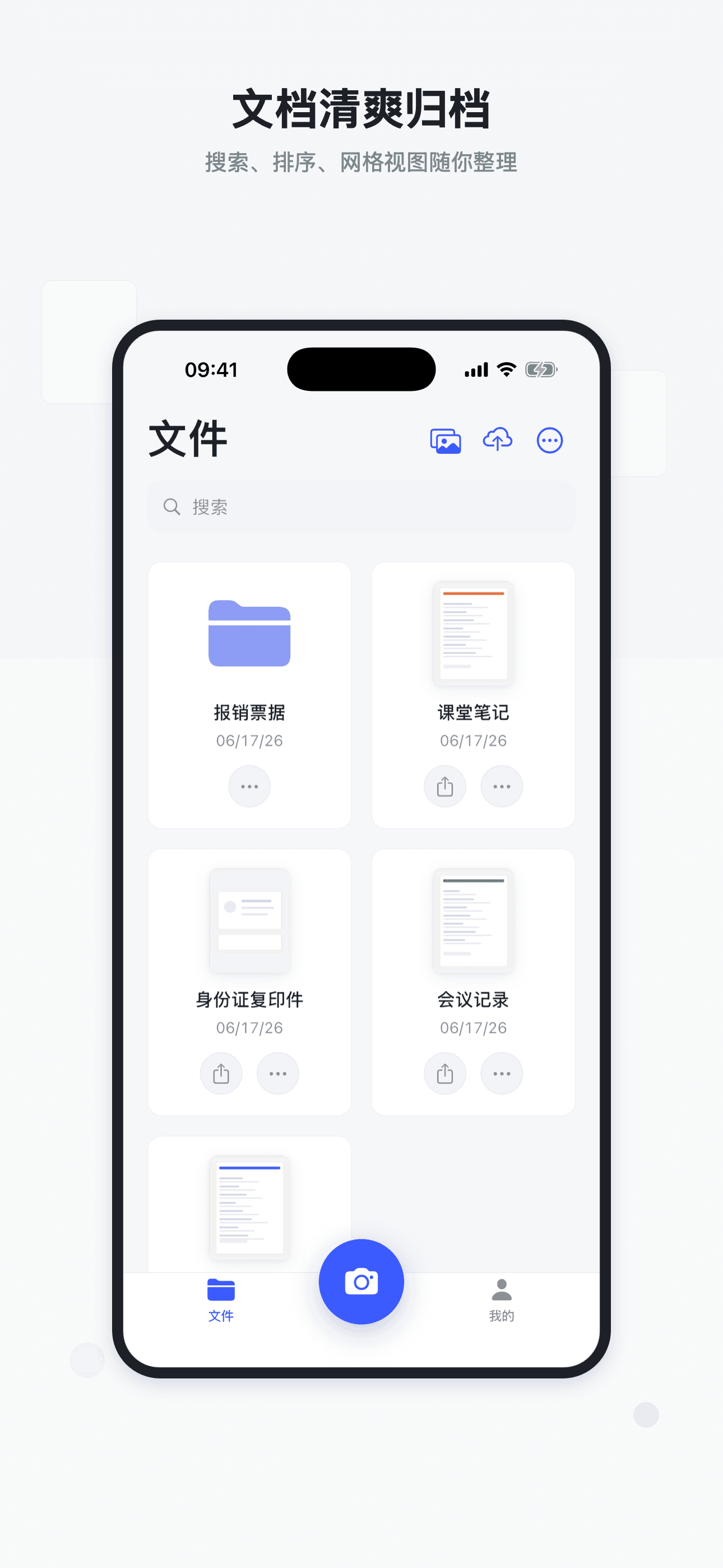
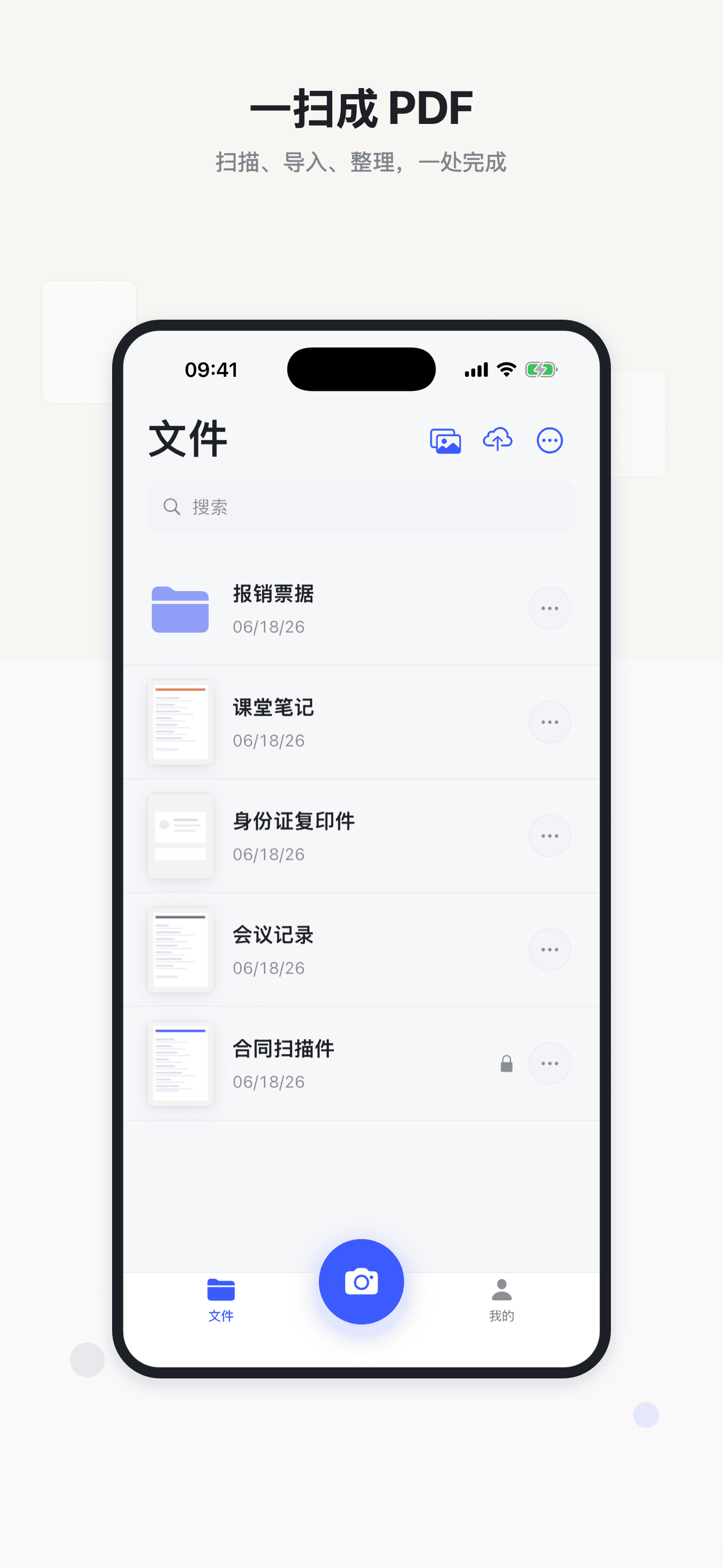
Scan, import, and organize in one file library

Camera, photo, and iCloud entries are clearRecent files and folders are immediately visibleReady to scan on first open
Scan to PDF screenshot
Capture paper fast screenshot

Capture paper fast

Start multi-page scanning from the camera

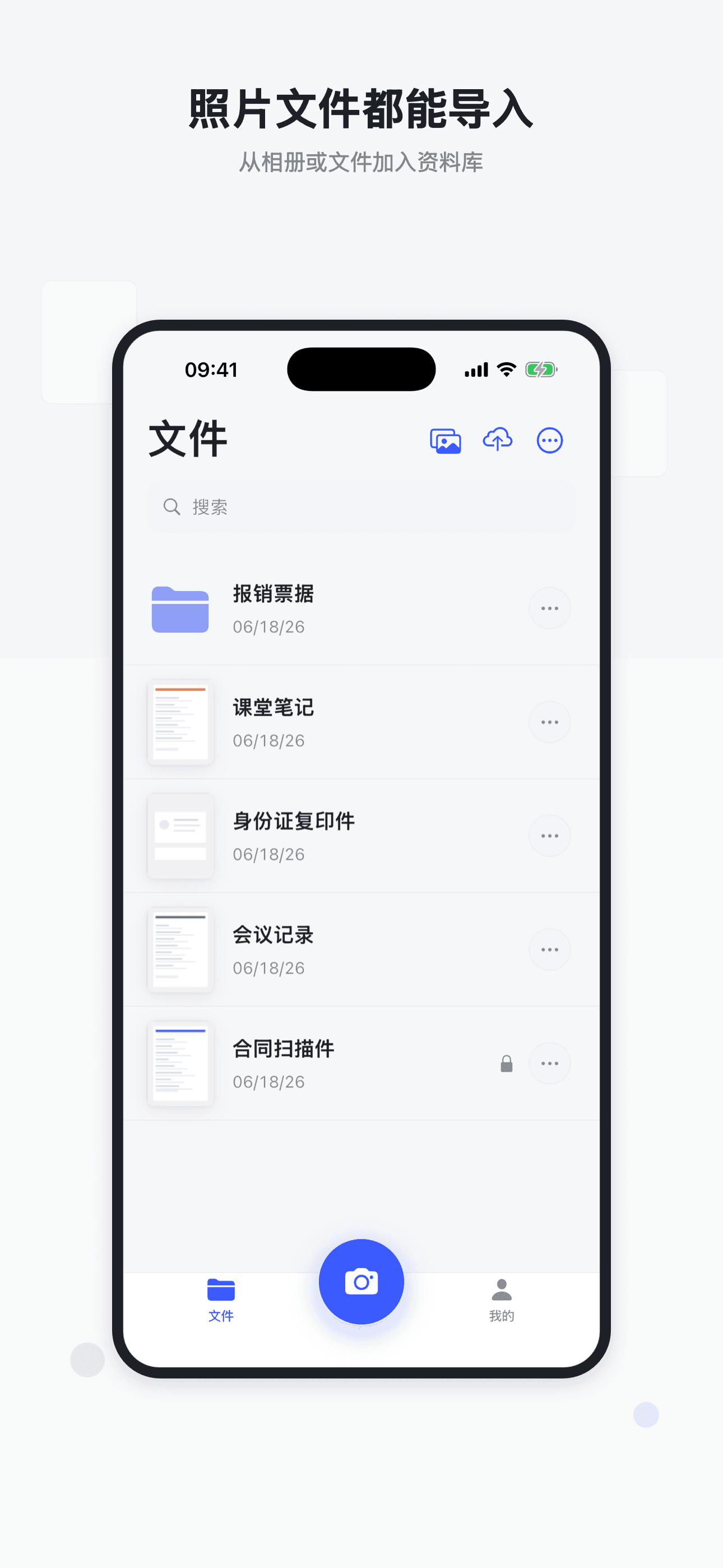
Import photos and files screenshot

Import photos and files

Bring existing material into the scan workflow

Receipts, contracts, IDs, and notes should share one place to finish the job.

Basic scanners solve the first step: take a picture. PDF Scanner continues through import, editing, filing, protection, and export.

Input sources
My PDF ScannerCamera, photos, iCloud, existing PDFs
Basic scan flowUsually one entry point
Editing
My PDF ScannerCrop, filters, correction, signatures, reordering
Basic scan flowOften needs another tool
Export formats
My PDF ScannerPDF, JPG, TXT, Word
Basic scan flowUsually PDF or image only
Organization
My PDF ScannerFolders, search, grid/list views, batch actions
Basic scan flowMostly system folders
Privacy entry
My PDF ScannerIn-app password and App PIN
Basic scan flowUsually no per-app file protection

Pro tools for frequent document work

Basic scanning stays lightweight. Pro unlocks OCR, batch workflows, protection tools, and advanced export.

Upgrade to My PDF Scanner Pro
Monthly, yearly, and lifetime plans are supported
OCR text recognition with TXT or editable Word export
Batch merge, batch export, batch move, and multi-file sharing
Advanced export for contracts, IDs, receipts, and book pages
In-app password protection and a fuller document workflow

Questions users ask before getting started

Is PDF Scanner only for taking scan photos?+

No. It covers capture, photo import, iCloud file import, page editing, OCR, folder management, export, and sharing.

Can imported PDFs be edited page by page?+

Imported PDFs can be renamed, shared, moved, deleted, and protected in the app. Crop, filters, cleanup, and signature editing are mainly for image-based scans.

Is password protection the same as exported file encryption?+

No. In-app password protection controls access inside the app. Exported files are not automatically encrypted because of it.

Ready for paperwork

Turn the next stack of paper into a clean PDF document library.